Showing posts with label suite. Show all posts

Saturday, March 16, 2013

Add Playframework 2 support in eclipse for building a Web Application


In this tutorial I'll add support for Playframework 2 in spring tool suite (IDE based on eclipse)

Supposing you have already the Spring Tool Suite. We'll install the Play2 plugin in our IDE.

Step 1: Install the Scala-IDE (this is required for play plugin) - http://scala-ide.org/index.html

We'll go in the wild side and select the version 3 release candidate. http://scala-ide.org/download/milestone.html#scala_ide_30_rc3

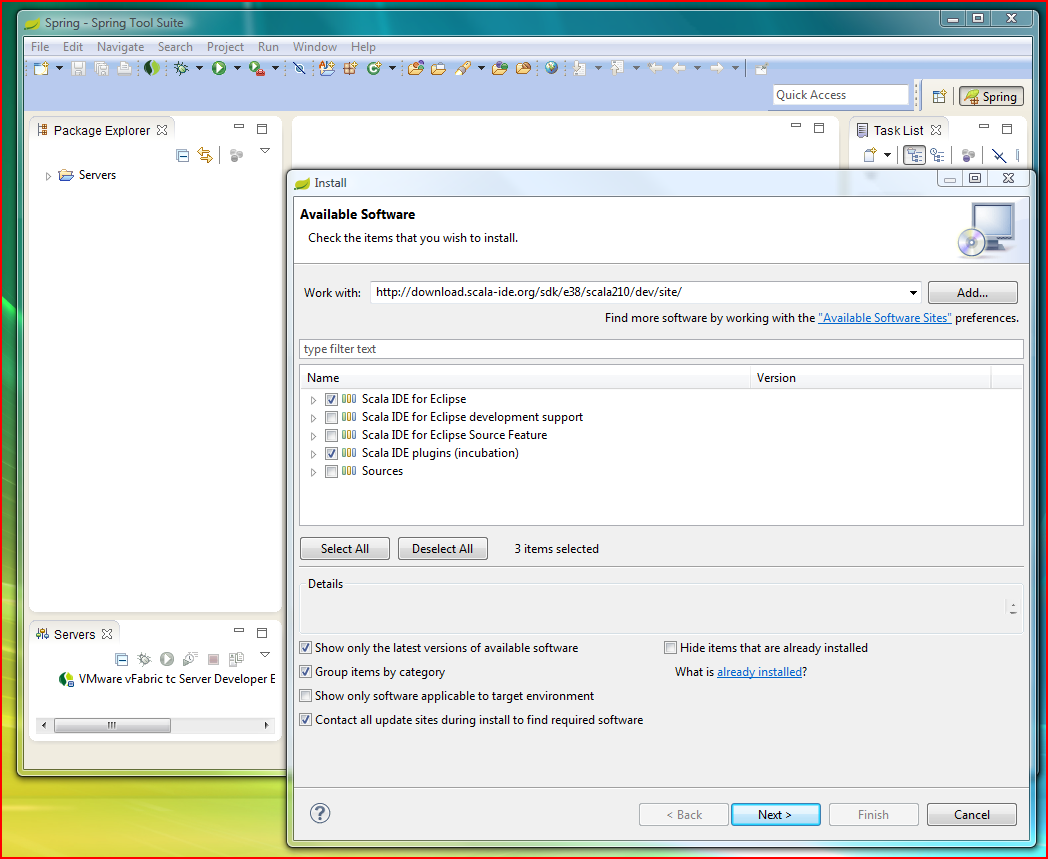
Go on Help > Install New Software...


Put the link for the nightly build link at "Work with:" hit enter


check "Scala IDE for Eclipse" and "Scala IDE plugins (incubation)"


and hit "Next > "
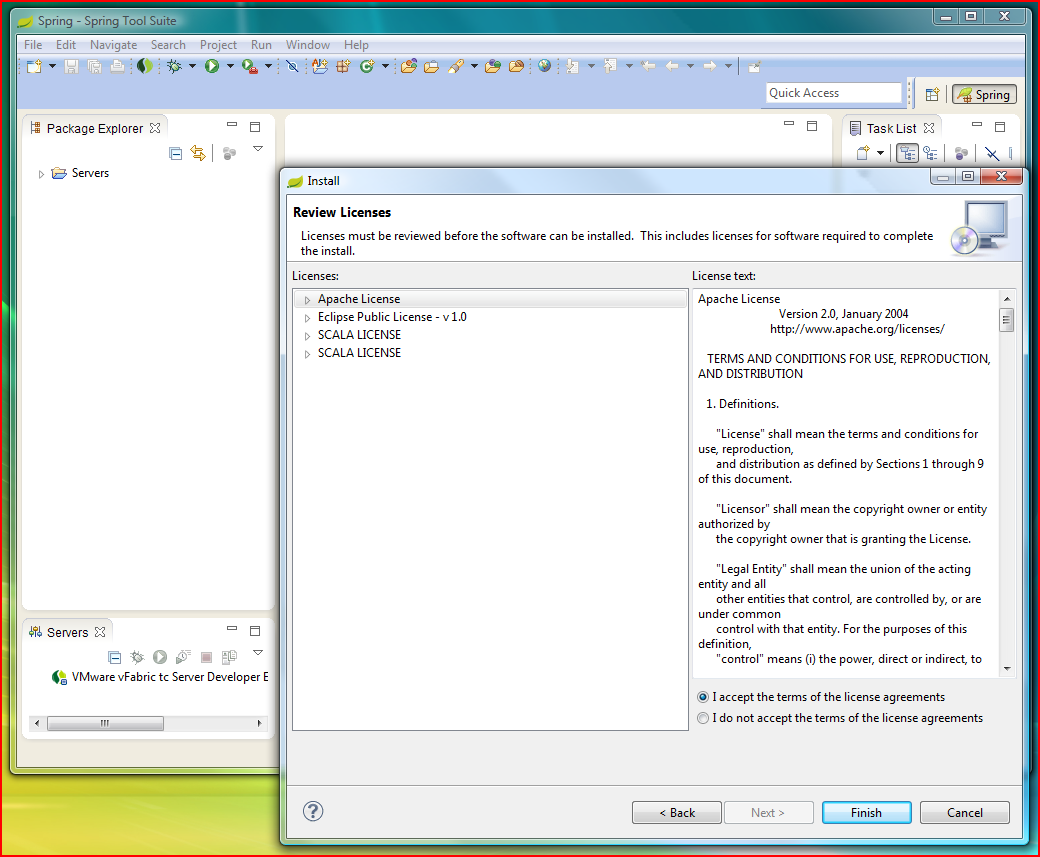


accept the license and press "Finish" and after a while, you'll receive a warning


hit ok and restart your IDE.

After restart a message would appear about "Scala Setup Diagnostics"
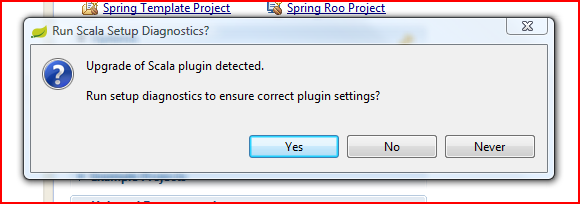

hit "Yes"


it's recommended to increase the heap for a proper functionality modifying the JVM arguments in STS.ini file with the following:
   -Xms512m
   -Xmx1024m .
For more details about tuning the performance on eclipse follow this discussion: http://stackoverflow.com/questions/142357/what-are-the-best-jvm-settings-for-eclipse .


Step 2: Install the Playframework 2 plugin

We'll use the nightly build as it has the latest features. http://download.scala-ide.org/play2/nightly_3.0-M_juno_2.10-M/site/
Or you can build your own version from sources that are on github: https://github.com/scala-ide/scala-ide-play2 .

Go on Help > Install New Software...

Put the link for the nightly build [link] at "Work with:" hit enter, check "Play 2 support"


 and hit "Next > "


"Next > "


accept the license and press "Finish".


Continue the installation when you receive the warning.

Now we can develop our first play application.

Friday, March 15, 2013

Spring Tool Suite Java IDE tutorial


Setting up Spring Tool Suite IDE tutorial (eclipse)

The SpringSource's developer team created a powerful IDE known as Spring Tool Suite or STS, which comes on top of the latest Eclipse IDE releases.
STS also includes the developer edition of vFrabic tc Server, the drop-in replacement for Apache Tomcat that's optimized for Spring.
Is a great tool even for developing your applications targeting local, virtual and cloud-based servers.
It is freely available for development and internal business operations use with no time limits.

Step 1: Getting Spring Tool Suite

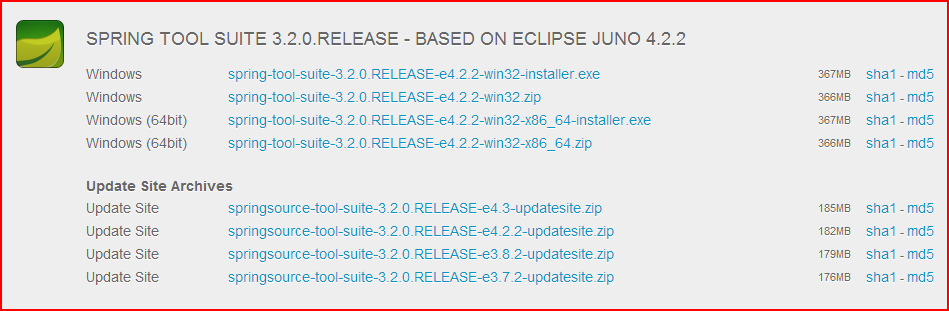
Open your favorite web browser and go to the download page.
The last version while I am writing this tutorial is 3.2.0.RELEASE. For better performance choose the version based on Eclipse Juno 4.2.2.


Download the zip file, extract the folder, run the STS.exe, you'll be promted for setting the workspace.


after this you'll have a brand new IDE ready to use.


A few tweaks I use for this IDE are:
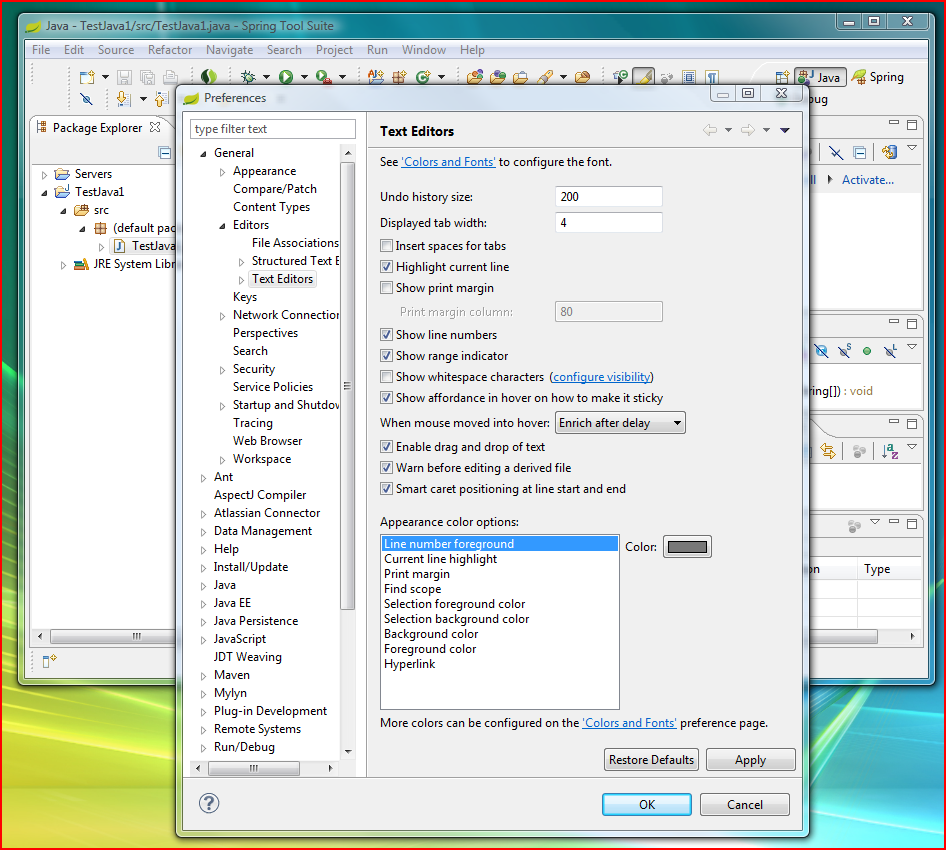
- show the line numbers (Window > Preferences > General > Editors > Text Editors and check "Show line numbers");


- show heap status (Window > Preferences > General > and check "Show heap status");


- and making sure you have an installed jre (Window > Preferences > General > Java > installed JREs);


if you don't have any JRE installed you can add a new one, click on ("Add..."), choose "Standard VM" in the next screen and "Next"


browse the "Directory..." and select the JDK folder


it will detect the jdk libraries and next "Finish".